File storage and transferring hold a very dear place in most people’s lives. However, the safety of files is really tough to maintain. In this guide, we are going to help you protect your files. We will explore ways to store and send files securely.
What is secure file storage?
Secure file storage protects your files. It prevents others from accessing your files or altering them in any way. Good storage grants protection to your files using locks. You alone can unlock such files.
Types of secure storage
Files can be stored securely in various ways, as listed below.
- Cloud
- Hard drives that are external
- Encrypted USB drives
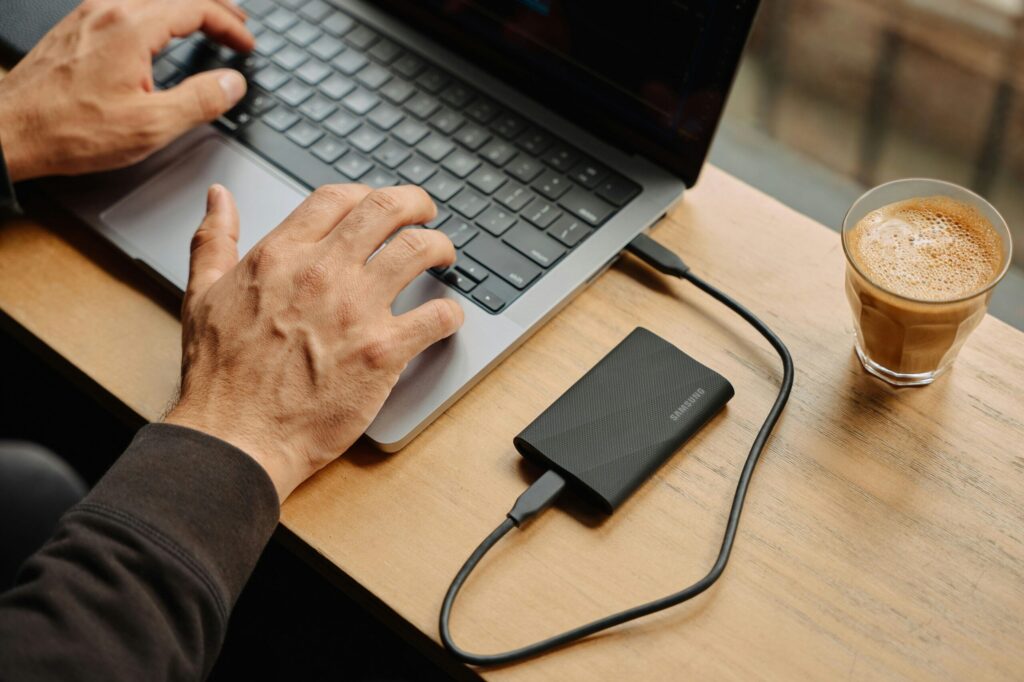
Cloud storage saves files on the internet. External drives save files on a device you can hold. Encrypted drives use special codes to lock files.
Why is secure file storage important?
Secure storage keeps your information private. It stops thieves from stealing your data. It also helps you follow laws about data protection.
Risks of unsecured storage
Unsecured files can lead to huge troubles, including but not limited to the following:
- Identity theft
- Financial loss
- Privacy breaches
These risks give a reason why secure storage is important. You need to protect your personal and work files.
How Can I Make My File Storage Safer?
You can do so many things to make your storage safer, such as:
- Using strong passwords
- Enabling two-factor authentication
- Encrypting your files
- Keeping your software up to date frequently
Strong passwords are hard to guess. Two-factor authentication adds an extra step to log in. Encryption scrambles your files so others can’t read them. Updates fix security problems in your software.
Best practices for passwords
Good passwords are important. Here are some tips:
- Use long passwords
- Mix letters, numbers, and symbols
- Don’t use personal info in passwords
- Use different passwords for each account
These tips make your passwords stronger. Stronger passwords keep your files safer.
What is secure file transfer?
Secure file transfer is a way of sending files safely between individuals or devices. It prevents unauthorized access to files and prohibits modification of files while in transit. The better methods of transfer protect the files with encryption.
Common secure transfer methods
There are several ways to securely transfer files. They include:
- Secure FTP (SFTP)
- Virtual Private Networks (VPNs)
- Encrypted email attachments
- Secure file-sharing services
Each of the above methods provides additional security when you transfer your files. They ensure your data is secured during transfer.
How to Transfer Files Safely?
Transfer of files safely can be done by following the steps outlined below:
- Select a secure method of transfer
- Encrypt the file before you send it
- Give strong passwords for file access
- Authenticate the recipient
- Send the access details separately
These steps will keep your files safer while in transit. This way, they can only be accessed by those whom they are intended for.
How to email attachments safely
Attaching to an email poses a risk. Here’s how to make it safe:
- Encrypt important attachments
- Use a secure email service
- Avoid writing sensitive information in the body of an email
- Double-check the recipient’s email address
These will help protect your email attachments from being viewed by others. Here are some of the common file storage and transfer mistakes:
People make a lot of mistakes when it comes to file safety. Here are some common ones:
- Poor password creation
- Forgetting to encrypt the files
- Sending sensitive information over public Wi-Fi
- Not updating the security software
- Giving out access information with the files
These can expose your files to unnecessary risks. Keeping off them means you are keeping your data safe.
How to avoid these mistakes
You will avoid these errors by:
- Setting up a password manager
- Setting up automatic encryption
- Using VPN on public Wi-Fi
- Allowing auto-updates
- Sending access info separately from the files
These steps keep you off the common security mistakes. They make the storage and transfer of your files safer.
Ready to Secure Your Files?
It ensures that your data is protected from thieves and snoopers. Use strong passwords, encryption, and safe methods of transfer.
Need help with secure file storage? Feel free to reach out today and let us walk you through setting up safe systems for your files. Don’t wait until it’s too late; take the next step in protecting critical data.
—
This Article has been Republished with Permission from The Technology Press.