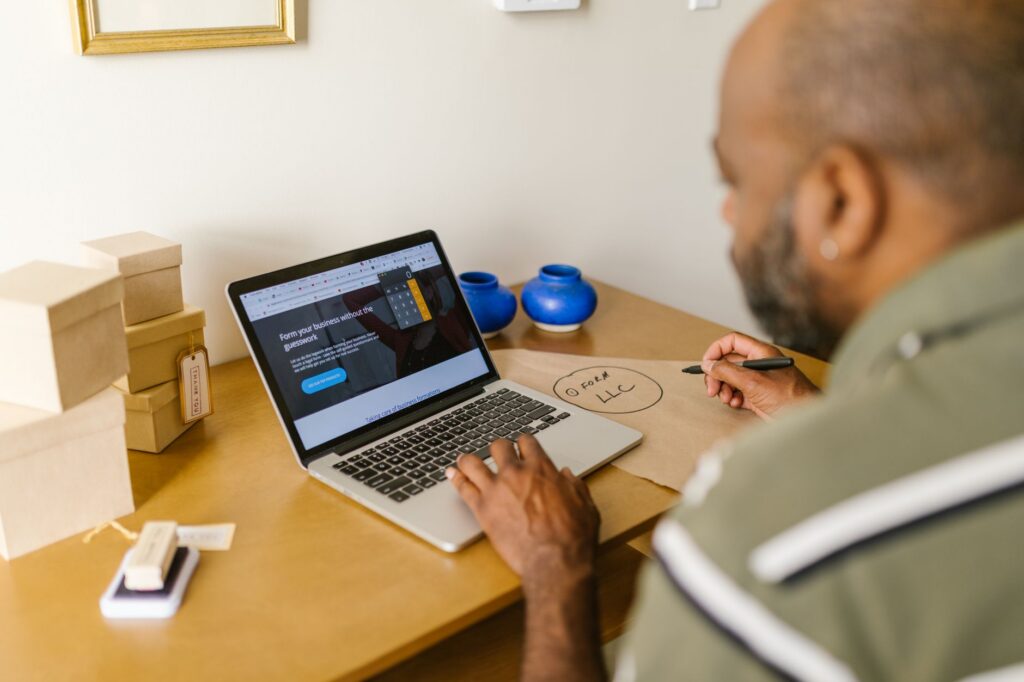

When you see those people with two monitors, you may assume they do some specialized work that requires all that screen space, or they just really like technology.
But having the additional display real estate that a second screen provides can benefit anyone, even if you’re doing accounting or document work all day.
We get used to being boxed in by the screen size we have. This can lead to us struggling when trying to fit two windows next to each other or continuously clicking between layers of windows on the desktop.
Most of us have experienced clicking around to find the window we actually need in a layer of different applications. This is one of the things that eats up time during the day and that using dual screens can help eliminate.
According to a study by software developer Mavenlink, 73% of surveyed businesses say they spend over an hour per day on average just switching between different apps.
Productivity Research on Dual-Screens
So just how much can using a second monitor improve productivity? Probably more than you realize.
Jon Peddie Research looked at the benefit of using two screens connected to a desktop computer or laptop for several years. It found that overall, employees in all types of jobs can improve productivity by an average of 42%.
From three studies conducted over 15 years, it also found that between 2002 and 2017, there’s been a significant rise in the use of two monitors, with a compound annual growth rate of 10%.
The company’s namesake put it simply saying, “The more you can see, the more you can do.”
What Are the Advantages of Adding a 2nd Screen?
Do More in Less time
The biggest advantage to using a second monitor is that you can do more in less time because you’re not struggling to get to the windows you need when you need them.
With an additional monitor, you can keep programs like email always open on one screen while you work in other programs on the second screen. You’re able to work more fluidly, getting to all your apps when you need them.
Expands Screen Space for Laptops
Laptops are great for portability, especially when traveling or moving between home and work (as many employees do these days). But the more portable the laptop, the smaller the screen space.
One big drawback of using a laptop is that they will have a smaller monitor. There is also the difficulty in positioning. When using them on a desk, people will often try to prop them up, but the person is still staring down at the screen in most cases.
Connecting your laptop to a monitor can significantly improve the experience and make it like working on a normal desktop PC. You can either choose to mirror your entire screen or still make use of the laptop screen for some activities while using the larger screen for others.
Side-by-Side Comparisons Are Easier
There are a lot of tasks that require looking at data in two windows. You may be editing and comparing a finished design with the original instructions. Or you may have to pull details from notes to include in a PowerPoint presentation.
Trying to get two windows up on a single screen side-by-side can be frustrating. You may try to resize the windows just so, only to have your configuration lost when you have to maximize a screen to click a menu item or scroll.
With two monitors, you have the screen real estate you need to fully open both windows and have them right next to each other so you can easily do your work.
More Freedom During Video Calls
Have you ever been screen sharing on a video call and needed to check an email or review notes? It’s difficult to do that when everyone can see your screen. We often “sanitize” our screens (like turning off alerts, etc.) before we go into a meeting to ensure nothing that should not appear is popping up.
With dual screens, you can choose which screen you want to share during meetings, and still have apps open on the other screen that no one can see. This is a big advantage if you need to check for an email or message someone while you’re sharing your screen.
Fairly Inexpensive Productivity Booster
Purchasing another display is a fairly low investment when looking at technology. A monitor can be purchased from anywhere between $125 to $250 on average. And with a 42% average productivity boost, it can have a pretty sweet ROI.
There is also no big learning curve with this upgrade. Once the monitor is plugged in and the PC is set to see the additional screen, it’s good to go. Users can simply drag apps and documents from one screen to another as if they had one large screen.
Need Help Improving Productivity?
There are several productivity boosts that you can get using the right technology tools, and they don’t have to cost a fortune. Ask us how we can help you!
This Article has been Republished with Permission from The Technology Press.